
Chat Inbox Filters: Search, Sort, and Audit Every Conversation Fast
Hundreds of open chats make a shared inbox unmanageable without filters. Combine assignee, label, status, direction, date, and keyword filters with AND/OR logic to instantly find any conversation, check workload, or audit activity in seconds.
Where Filters Fit Inside Your Team Inbox
Filters are the search-and-narrow layer underneath the Shared Team Inbox - the mechanism that turns a wall of raw customer chats into the exact slice of data you need in real-time. Where Chat Spaces let you save a query as a permanent standing view, Filters are the underlying engine: the individual attributes you layer together to answer immediate operational questions.
The Bottleneck for Team Inbox Users
Once a shared inbox crosses a few hundred open chats, "just scroll and look" completely breaks down. An agent hunting for a specific customer thread scans past dozens of unrelated conversations. A team lead checking agent workload has to open each profile manually. A manager auditing yesterday's outbound campaigns is forced to eyeball timestamps line by line. A big-sized business with multi-channel Chat inbox (connecting WhatsApp - with multiple number, Instagram, Live Chat, Tik Tok, etc) need to segregate and prioritze chats by channels.
Without structured multi-attribute filtering, follow-ups drop, agent capacity becomes invisible, and urgent inquiries sit unnoticed until a customer escalates.
Before vs. After: Manual Searching vs. Attribute Filtering
How Inbox Filters Actually Work
Every conversation inside Chakra Chat carries structured attributes: assignee, label, open/closed status, direction (inbound/outbound), phone number, timestamp, and marketing source. Filters run Rule queries across these chat attributes using AND/OR logic, letting you stack rules to isolate micro-segments.
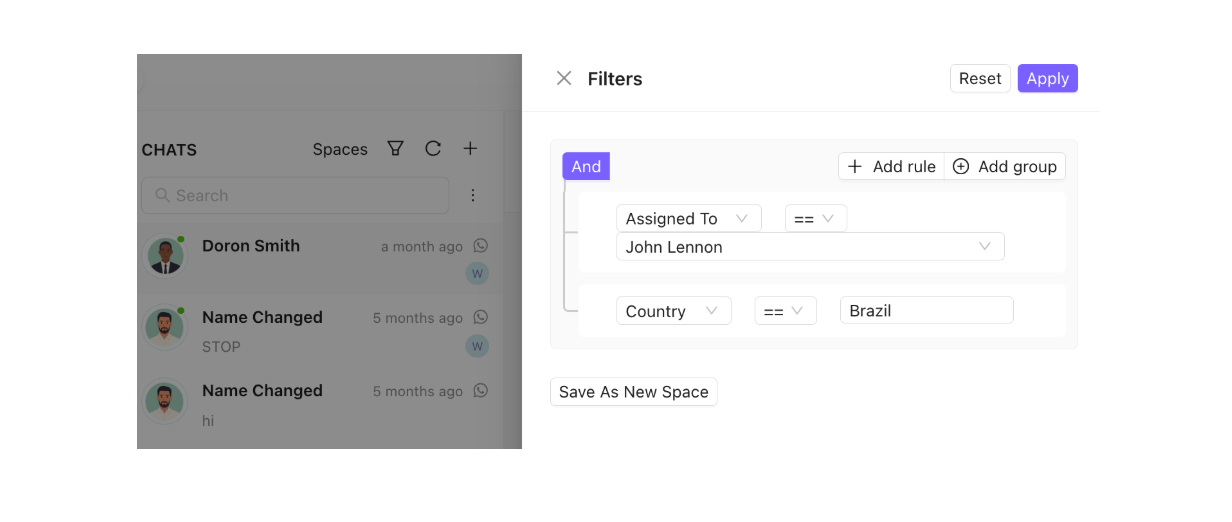
Beyond metadata, free-text search queries message bodies directly; surfacing relevant threads when you remember the context of what was said, but not who sent it.
Six Routine Use Cases
- Assignee Filter: As a Manager, evaluate agent workload instantly to balance active tickets or prepare for 1:1 operational check-ins.
- Label Filter: Pull all chats marked "Complaint" or "Payment Issue" into a single prioritized queue.
- Direction Filter: Isolate business-initiated messages to evaluate campaign performance separately from incoming support traffic. This is esepcially speciic for WhatsApp channel.
- Date Range Filter: Audit specific operational windows (e.g., yesterday's shift) without interference from older archives.
- Last Message Direction Filter: Surface chats where the customer replied last but your team hasn't responded, preventing threads from going stale.
- Status Filter: Separate open active tickets from archived history to maintain a zero-clutter workspace.
How to Build a Filtered Chat Inbox View
- Open Filter Panel: Access the filter controls directly above the Team Inbox thread list.
- Apply Parameters: Select attributes (Assignee, Label, Status, Date) and define your AND/OR logic.
- Refine Results: Adjust keywords or condition parameters until the chat list matches your query precisely.
- Convert to Space (Optional): Click "Save as Space" if this filter combination represents a view your team will revisit daily.
Ad-Hoc Filtering vs. Chat Spaces
Filters are flexible, on-the-fly analytical tools built for variable questions like "Show me everything tagged Escalated from yesterday." Spaces are what a filter becomes once it proves valuable enough to save permanently. Filters represent the raw query; Spaces represent the saved dashboard view.
Chat filter helps the business process?
The primary financial return of inbox filtering is Time-to-Locate Reduction. Shifting search times from 4 minutes of scrolling down to under 10 seconds saves an agent ~30 minutes daily in lost labor. Across a 10-person support team, that recovers up to 25 hours of productive capacity every week without adding payroll.
How to do it right and avoid issues?
- Enforce Tagging Hygiene: Filters rely on clean inputs. Inconsistent labelling (e.g., using "Refund" vs. "return" vs. "billing") silently fragments filter results. Audit label taxonomies monthly.
- Role-Based Workflows: Train frontline agents on operational filters ("My Unresolved Chats") while managers focus on audit logic ("Breached SLA + Last Message Inbound").
- Downstream Integration: The labels and attributes used to filter your inbox automatically sync with Chakra Chat’s reporting layer and CRM webhooks, ensuring triage data powers your analytics dashboards natively.
Filter systems turn a chaotic shared inbox into an indexed database. Standardize your team's labelling structure, deploy AND/OR combinations for complex queries, and convert your high-frequency searches into permanent Chat Spaces.